A beautiful gallery for all your screenshots
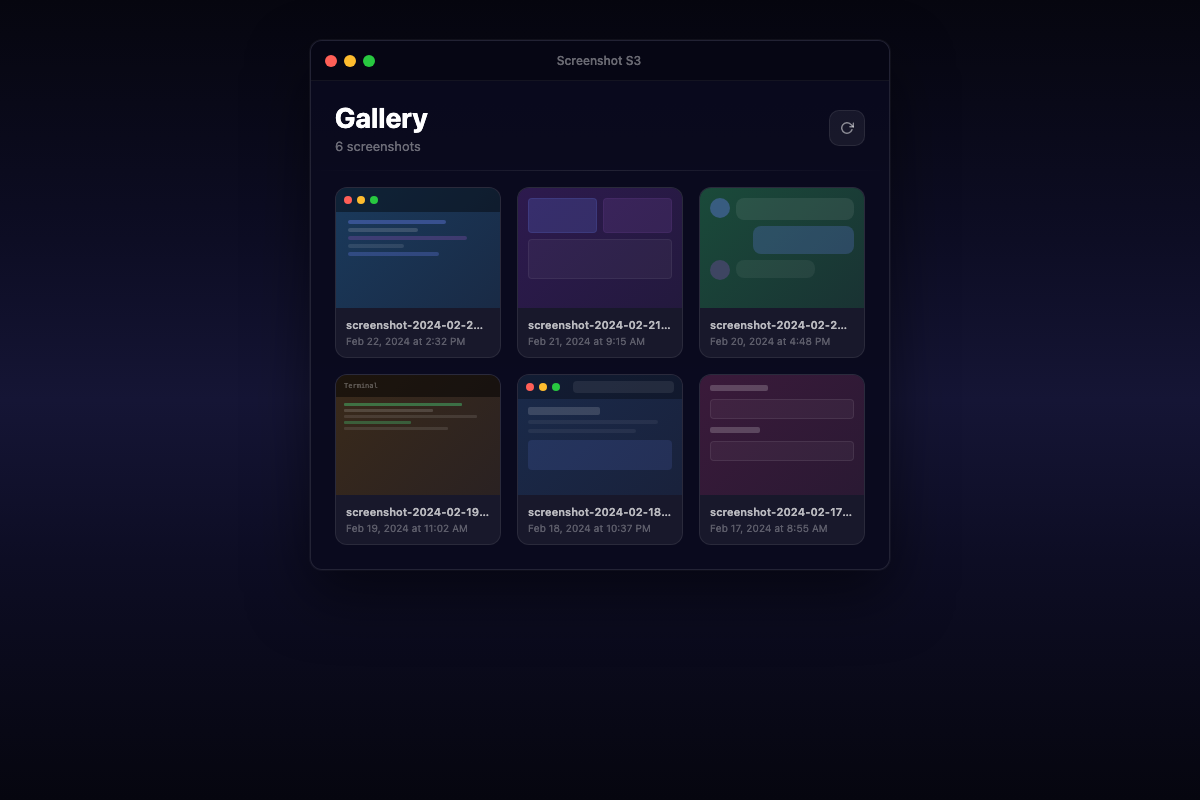
Browse, search, and re-copy links to any screenshot you've ever taken — all from your menu bar.
Automatically upload every screenshot you take to an S3 bucket. Then automatically copy the link to your clipboard.
A tiny macOS menu bar app that lives in your menu bar, watches for new screenshots, and handles everything — instantly and silently.
Screenshots are detected and uploaded to S3 the moment they're saved. Zero manual steps.
The public link is copied to your clipboard instantly. Just paste it wherever you need it.
Browse all your past uploads in a beautiful gallery. Re-copy links or open them anytime.
Lives quietly in your menu bar. No Dock icon, no windows — just a clean, native macOS experience.
Browse, search, and re-copy links to any screenshot you've ever taken — all from your menu bar.
Use macOS shortcuts like Cmd+Shift+4 as you normally would.
Screenshot S3 detects the new file and uploads it to your S3 bucket.
The public URL is on your clipboard. Paste and share immediately.
Just input your AWS access key and secret key — that's all it takes to get started. Your credentials are stored locally on your Mac and are never sent anywhere except directly to AWS. No middleman, no server, no account to create.
Screenshot S3 is 100% open source. Inspect the code, contribute features, or fork it and make it your own. No tracking, no telemetry, no hidden anything.
View the source on GitHubFree, open source, and built for macOS.